16 UX Tools I Open Every Single Day in 2026

Every “designer tools” post is the same listicle. 25 apps ranked by nobody, half of them you’ll never open. You bookmark it and feel productive for about a minute. Then you forget it exists.
This isn’t that.
Five-ish years of shipping real products, and my toolbox has gotten smaller. Not bigger. These are the 16 tools I actually open, the ones that show up on a Tuesday afternoon with a deadline breathing down my neck. And I’m not dumping them on you in a random pile. You’ll get them in the order I use them on an actual project, from the blank brief to a prototype that feels like the real thing.
If you’re a junior or mid designer trying to figure out what’s worth your time and money, this is the map I wish someone had handed me.
My bias, up front: I care about speed and how a thing feels, and I lean on AI for the grunt work. What I can’t stand are tools that make you feel busy without making the work any better. Chalo, let’s go.
TL;DR — the flow:
- Think & research: Brave · Claude · ChatGPT · Obsidian
- Get inspired: Behance · Dribbble · Awwwards
- AI first drafts: Google Stitch · Banani
- Design for real: Figma
- The details: Heroicons · Phosphor · Google Fonts · Huemint · Freepik
- Make it feel real: ProtoPie
Before a single pixel: think, research, remember
Junior designers open Figma first. Seniors open it last-ish. The work that decides whether a design lives or dies happens before the canvas, back when you’re still figuring out the problem and the person you’re actually solving it for. This is my brain stack.
1. Brave
What it is: A privacy-first Chromium browser that blocks ads, trackers, and cookie pop-ups by default.
Link: brave.com (free, download)
I do all my digging in Brave, not Chrome. And when you’re 30 competitor tabs deep, the gap shows up fast. Chrome turns my laptop into a space heater and the fan starts screaming. Brave just… doesn’t.
How I use it:
- It blocks ads, trackers, and cookie pop-ups by default, so competitor sites load fast and I’m not clicking “reject all” forty times an hour.
- Lighter pages mean fewer “why is this site so slow” moments mid-teardown.
- I research a lot of unreleased and competitor stuff. I’d rather that not feed someone’s ad profile, and I don’t trust Chrome to sit that one out.
- Tab groups. One window, split into competitors, inspiration, docs, and a junk pile for the rabbit holes. Otherwise a research session becomes 60 nameless tabs by lunch.
- It keeps the power-user extensions (uBlock and friends) that Chrome has slowly been strangling.
For juniors: you don’t need Brave to be a great designer. But research is 40% of the job, and a calmer browser makes you do more of it. Tiny change, and you research more. That’s the whole point.
2. Claude
What it is: Anthropic’s AI assistant. I mostly use Claude Code, the version that works directly inside your project files and folders.
Link: claude.ai (free + paid). Claude Code lives at claude.ai/code.
This is the one that genuinely changed how I work. People expect “AI that designs for you.” That’s not what this is. It’s the colleague I argue with at 2am. And it stays open the entire time a project is alive, from the first research note all the way to handoff. Every single day.
The bigger shift for me: I’ve moved almost entirely from the Claude chat app to Claude Code. Instead of copy-pasting snippets into a chat window and losing the thread the second I close the tab, Claude Code works directly inside my project folder, reading and writing the actual markdown files. You don’t have to be a coder to use it (I talk to it in plain English). You point it at a folder and go.
Why folders plus markdown beat the chat window:
- It reads my whole project folder, so it already knows the research and every call I made along the way, including the dumb idea I tried in week one and killed. No re-explaining myself every session.
- Outputs save as markdown straight into my vault (hello, Obsidian), so the work piles up instead of evaporating in a chat I’ll never find again.
- It edits the project, not a paragraph. Restructure notes, update five docs at once, keep a running decision log.
How I use it across every phase:
- Discovery. I paste raw interview notes or survey dumps and get back the themes and a couple of draft personas in minutes, instead of a full day of affinity mapping.
- Define and scope. It turns messy findings into a crisp problem statement and a feature list short enough to actually ship.
- Design decisions. “Here’s my onboarding flow, where will people bail?” It pokes holes I’m too close to see.
- UX writing. Button labels, empty states, the little error toast nobody reads, all in the tone I’m going for.
- Vibe-coding real prototypes. I’ll have it build a quick working HTML or React version so I can test how the thing actually feels. A clickable mockup can’t tell you that. (This whole blog was vibe-coded in Claude Code the same way.)
- The boring-but-critical stuff: research plans, usability-test scripts, decision logs, and squashing a 40-page spec into 5 bullets.
3. ChatGPT
What it is: OpenAI’s AI chatbot. On my desk it mostly earns its keep for image generation and fast visual riffs.
Link: chatgpt.com (free + paid, web and app)
I run both Claude and ChatGPT. For thinking and writing, Claude wins, full stop. ChatGPT I keep around for basically one thing: images and fast visual riffs. If I had to drop one, ChatGPT goes.
How I use it:
- Concept imagery and illustrations so mockups aren’t a sea of grey placeholder boxes in a review.
- Moodboard fuel. Quick style exploration before I commit to a direction.
- Icon and illustration ideation when I need a visual metaphor and my head’s gone blank.
- Naming and copy. I’ll bounce off both, but ChatGPT spits out 10 throwaway taglines faster. Claude’s are better and slower. For a quick react-and-discard list, ChatGPT.
4. Obsidian
What it is: A local-first, markdown notes app for building a linked “second brain” you actually own.
Link: obsidian.md (free, download)
Everything above is useless if it evaporates when the project ends. Obsidian is where it all lives and adds up over the years.
How I use it:
- One linked vault for every project, research note, swipe, and lesson. Plain markdown files I own locally, no lock-in, ever.
- Bi-directional links connect patterns across projects. “Wait, I solved this onboarding problem two years ago” happens more than you’d think.
- Daily project notes: decisions, feedback, and why I made each call. This one saves me in crits and handoff when someone asks “why is it like this?”
- Templates for research plans, heuristic evals, and kickoffs so I’m not rebuilding structure every time.
- My Claude outputs land here, so the vault gets smarter the longer I use it.
Filling the tank: where I go to get unstuck
Before I design, I deliberately go look at great work. Not to copy. To remind my eye what good looks like, and steal the principles. I’ve got three regular haunts, and each one’s for a totally different job.
5. Behance
What it is: Adobe’s portfolio network. The place for full case studies and process, not just pretty hero shots.
Link: behance.net (free, web)
Dribbble gets all the love, but Behance is where I actually learn.
How I use it:
- I read the full case studies, the messy problem and the process and where it landed, all the stuff the hero shot hides.
- I study how seniors present work end to end. (Warning: this will quietly fix your portfolio too.)
- Vertical research. Last time I had a healthcare project, I burned an evening on Behance just learning how that domain handles consent screens before I touched Figma.
- I save per-project collections so a direction is one click away when I come back.
6. Dribbble
What it is: A designer community of UI “shots” for quick visual inspiration and component ideas.
Link: dribbble.com (free, web)
How I use it:
- Search “pricing table” or “date picker” and you’ll see 50 takes in two minutes.
- When a screen feels flat, I’ll search a specific interaction, say a toggle or a loading state, and grab the timing. Not the over-the-top stuff that ignores real content.
- Follow designers whose craft you want to absorb.
- Honest junior warning: Dribbble is eye-candy. Borrow the polish, not the fantasy UI that ignores edge cases and real data.
7. Awwwards
What it is: An awards site spotlighting cutting-edge web design, motion, and interaction.
Link: awwwards.com (free, web)
How I use it:
- Motion and scroll storytelling, the stuff that’s two years ahead of what clients will ask for.
- Award-winning transitions and type, just to push my own bar up a notch.
- Heads up: these are showpieces, and most are heavy as hell. I steal one idea and shrink it down to something that survives a real product.
Skipping the blank canvas: AI first drafts
Here’s the 2026 shift juniors should lean into hard. You don’t have to start from zero anymore. I use AI to bang out rough first screens, then bring my own judgment to refine. The empty artboard was always the scariest part of the job. Now it’s just editing, and editing I can do all day.
8. Google Stitch
What it is: A free Google Labs AI tool that turns text prompts into multi-screen, Figma-ready UI.
Link: stitch.withgoogle.com (free, web, Google login)
How I use it:
- Type a prompt, get multi-screen, Figma-ready UI in a few minutes. The blank-canvas dread just goes away.
- Spin up 3 or 4 directions for a concept, then pick the strongest. Honestly, 3 of the 4 are usually junk. The 4th gets me moving, and that’s the whole point.
- Screenshot to redesign, when I want to riff on an existing flow.
- Export to Figma. Done.
- Great for showing instead of telling with stakeholders before I’ve sunk real hours in.
9. Banani
What it is: An AI text-to-UI copilot that generates editable, multi-screen designs, with one-click “Copy to Figma.”
Link: banani.co (free + paid, web)
Banani does a similar job to Stitch, and I run them as a little race. Generate from both, cherry-pick the best bits. Honestly Banani wins more often for me, because Copy-to-Figma is so clean. Stitch’s exports need more cleanup. If you only try one, start with Banani.
How I use it:
- Text-to-UI with multiple screens, great for early concepting and MVP visuals.
- The one that sold me: “Copy to Figma.” Paste AI-generated screens straight into my working file.
- Change colors, fonts, and layout by just telling it what you want in plain language.
- Real-time collaboration for quick brainstorms with the team.
- For the founders and PMs I work with, it’s the fastest way to get a vague idea onto a screen we can argue about.
The senior mindset here: AI gives you speed, not taste. It’ll hand you a generic-but-fast starting point. Your job, the thing that keeps you employed, is knowing which 20% to keep and how to make it actually good.
Home base: where the real design happens
10. Figma
What it is: The industry-standard tool for collaborative UI design, prototyping, and developer handoff.
Link: figma.com (free + paid, web and app)
Everything I make ends up in Figma eventually. Basically everyone who ships product UI lives in it, and I’ve never been on a serious team that didn’t. If you learn one tool deeply, make it this one.
How I use it:
- Wireframes to high-fidelity UI, all in one place.
- Auto Layout, components, and variants. This is the line between a junior file and a senior one.
- Variables and design tokens, so colors, spacing, and modes change in one place instead of forty.
- Dev Mode handoff: specs, tokens, and code snippets devs actually like.
- FigJam right next door for journey maps, flows, and workshops.
- Plugins. I run Content Reel for filling tables with realistic data and a contrast checker for accessibility. A 30-minute fill becomes 30 seconds.
The 1% details that make it look senior
Juniors and seniors often reach for the same layout. What separates the work is icons, type, and color. The craft details. Here’s where I source mine.
11. Heroicons
What it is: A clean, free SVG icon set (outline + solid) from the team behind Tailwind CSS.
Link: heroicons.com (free, web, copy SVG/JSX)
My default UI icon set.
How I use it:
- Clean outline and solid weights for product UI.
- Same stroke weight and grid as Tailwind’s defaults, so icons don’t look bolted on next to Tailwind type.
- Consistent stroke and sizing gives you that tidy, intentional look.
- Copy the SVG straight into Figma or code. No digging through the Downloads folder hunting for the file you just saved.
12. Phosphor Icons
What it is: A big, flexible icon family with six weights, from hairline-thin to solid fill.
Link: phosphoricons.com (free, web, copy SVG/JSX)
My backup when Heroicons comes up short.
How I use it:
- A huge library with weights from thin to fill. When Heroicons doesn’t have the icon, Phosphor usually does.
- Adjustable weight to match different UI densities and brand tones.
- Figma plugin plus code packages for a smooth pipeline.
- Mixing sets looks messy, so I pick one per project. For richer products, Phosphor’s range usually wins.
- Same deal as Heroicons: grab the SVG or JSX and paste it in, no hunting through Downloads.
13. Google Fonts
What it is: A huge, free library of open-source typefaces, ready for both Figma and the web.
Link: fonts.google.com (free, web)
Reliable, free type.
How I use it:
- Free, web-ready type that works in Figma and the real build, zero licensing headaches.
- Pairing. My default lately is Fraunces for the display face and Inter for the body. Characterful headline, boring-on-purpose body.
- Variable fonts for performance and flexibility.
- Fast, free, and it has never once been the thing that held up a launch.
14. Huemint
What it is: An AI color-palette generator that previews schemes on real UI and brand layouts, not just swatches.
Link: huemint.com (free, web)
Color is where juniors freeze. I did too. Huemint is AI for palettes, and the thing that sold me is it previews them on real layouts, not naked swatches.
How I use it:
- It shows the palette on actual UI and brand mockups, so I can judge it in two seconds instead of squinting at five hex codes.
- Lock my brand colors, shuffle the rest, until a palette clicks.
- Context modes (website vs brand work, mostly) so you get the right kind of palette, not a generic one.
- Export HEX or RGB straight into Figma.
- It kills the “what accent goes with this blue?” guesswork.
15. Freepik
What it is: A massive stock library of photos, vectors, icons, and illustrations for mockups.
Link: freepik.com (free + paid, web)
How I use it:
- Stock photos and vectors, but honestly I go there for the icons and illustrations.
- Real content, so review screens look like an actual product, not a wireframe full of grey boxes. Grey placeholder boxes in a stakeholder review are death. I’ve watched a good design get torn apart because the boxes made it look half-finished.
- Illustrations for empty states, onboarding, and marketing pages.
- The built-in AI tools (background remove, generate) increasingly save me a trip to another app.
- One library instead of five tabs.
Make it move: prototyping the feel
A static mockup hides the one question that matters: how does it actually feel to use? For anything past a basic click-through, I drop Figma’s prototyping and reach for ProtoPie.
16. ProtoPie
What it is: A high-fidelity prototyping tool for realistic, logic-driven interactions (conditions, variables, sensors).
Link: protopie.io (free + paid, download)
ProtoPie is the only tool here I’d call non-obvious, so let me make the case. Figma can fake a tap and a transition. It can’t fake a drag that resists, a toggle with real state, or a gesture that behaves differently depending on what the user did three screens ago. ProtoPie can, because it has conditions, variables, and actual logic underneath.
I import my Figma designs and layer the advanced micro-interactions on top. Then I put it in front of real users before a single line of production code exists. That last part is the whole reason I bother.
It also handles device sensors and inputs, so when a brief gets ambitious (mobile, auto, IoT) it keeps up. And a prototype that genuinely feels real sells the vision to stakeholders better than any slide ever could. The big shops use it too. That’s not why I do.
One last thing before you go tool-shopping
Real talk: I could hand you this entire 16-tool stack tomorrow and you’d be exactly where you are right now come Monday. Take it all away, leave me a pen and Figma, and the work still ships. The tools don’t make the calls. They clear the junk out of the way so I can spend my head on the only hard part, which is figuring out what people actually need and how to hand it to them.
So don’t try to swallow all 16 this week. You’ll just feel behind, and feeling behind makes you design worse. Pick one per stage. A browser, an AI partner, Figma, an icon set you trust, something for color, a prototyper. Live in each one until it’s muscle memory, then reach for the next. The rest can wait until a real project drags it out of you.
That’s how this list got built, honestly. One tool at a time, each earning its slot by making the work better. Not by showing up on a listicle like this one.
So tell me: what’s the one tool you can’t design without? Drop it in the comments. I’m always hunting for the next one worth stealing. 👇
Did this land? Tap a reaction.
😼 Billa Alert!
Take back your sleep routine. Schedule phone switch-off with Nightcap on Android.
Read post →Try apps made by me
View all in Foundry →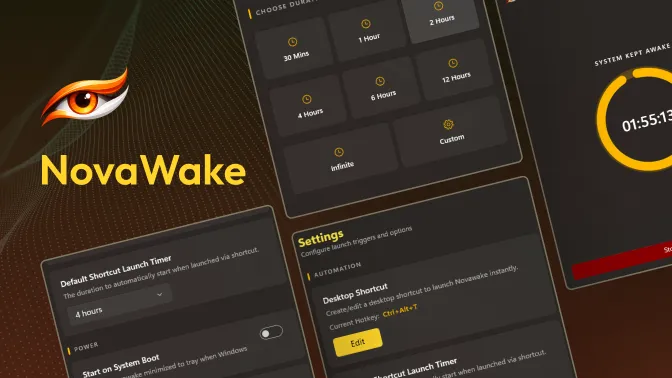
NovaWake
WindowsA lightweight Windows utility that keeps your PC awake when you need it. Prevents Windows from entering sleep during downloads, presentations, or long-running tasks with custom timers, system tray controls, and global shortcut keys.
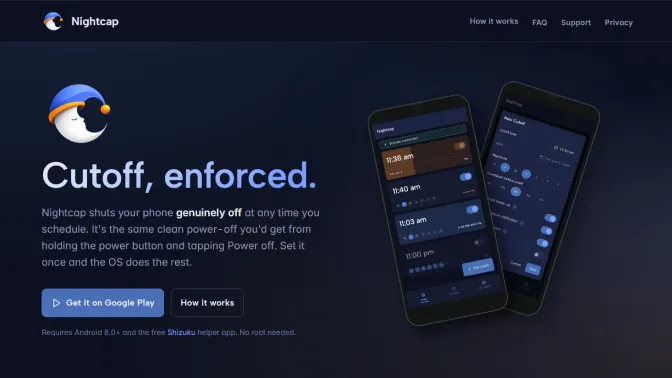
Nightcap
AndroidNightcap powers your phone all the way off at any time you schedule. Not a screen dimmer or a Do Not Disturb toggle you can swipe away in a second, but a real shutdown.
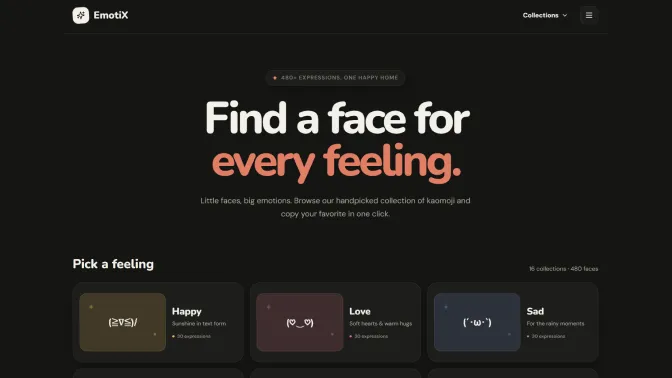
EmotiX
Web AppA curated collection and explorer for Japanese text emoticons (kaomojis). Browse through various mood categories, find a face for every feeling, and copy expressions instantly with a single click.
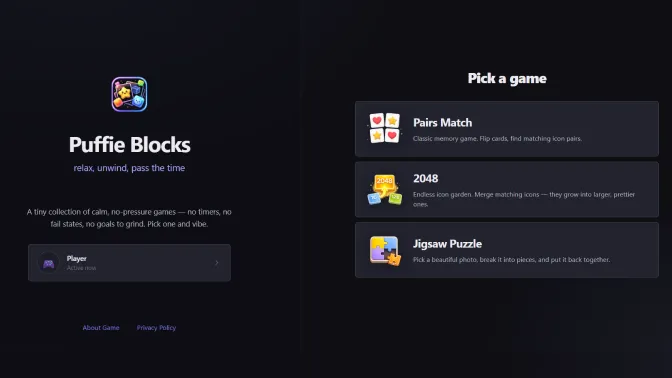
Puffie Blocks
Web AppA tiny collection of calm, no-pressure casual games. Includes memory matching and an endless 2048 icon garden, designed to let you relax, unwind, and pass the time.
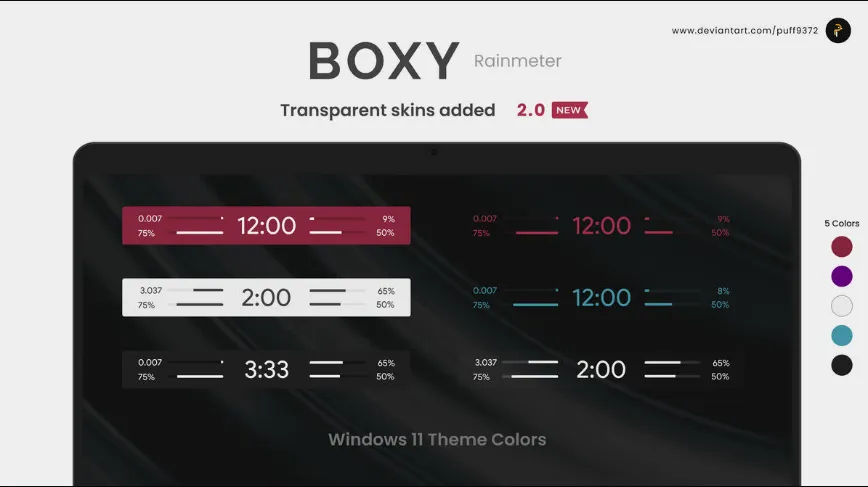
BOXY Rainmeter Skin
WindowsA modern, minimal, and clean system information skin for Rainmeter. It displays core desktop metrics in a beautifully simplified form, featuring color themes designed to match Windows 11 layouts.
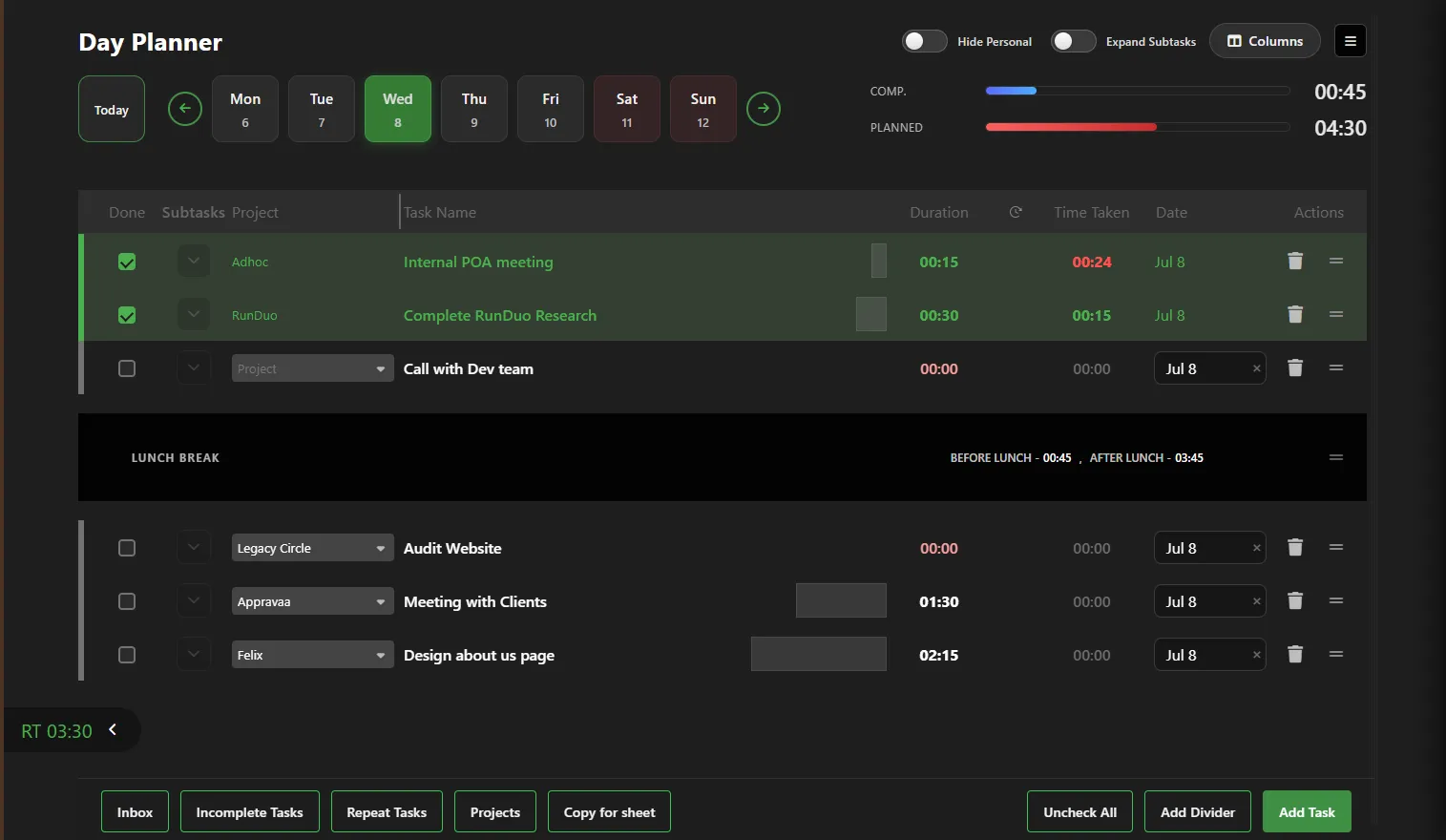
Day Planner
Web AppA task and schedule planner tailored for corporate and office professionals. It enables user-friendly task scheduling, calendar-based day planning, and interactive project completion tracking.