Keep Your PC Awake With a Single Shortcut, Meet NovaWake for Windows
You are deep in the zone vibe coding.
You give an AI coding agent a prompt for a gnarly refactor, spin up your local dev server, and step away to grab chai while it works.
Twenty minutes later, you walk back in, tap the spacebar, and wait.
Nothing.
Windows decided that because you were not physically moving your mouse, nobody was using the computer. So it put your machine into deep sleep. Your dev server crashed, your terminal sessions dropped, and the agent froze halfway through writing a component.
Context gone. Half-written code sitting in your working tree. Time to start the prompt all over again.
If you build things with AI agents, you know this pain.
And it is not just coding either. The same aggressive sleep timer loves to choke 60 GB Steam downloads at 12%, kill 4K video exports at 80%, and blackout your screen in the middle of a client demo.
The standard Windows fix is a joke: open Settings, click into Power & Battery, dig through dropdowns, and set sleep to “Never.” Then forget you did that until your laptop cooks itself inside your backpack two days later.
That is why I built NovaWake.
It is a tiny, clean Windows utility that keeps your computer awake on demand, without menu-diving or leaving your PC permanently awake.
What It Does
NovaWake talks directly to Windows’ native power availability APIs instead of faking keypresses in the background:
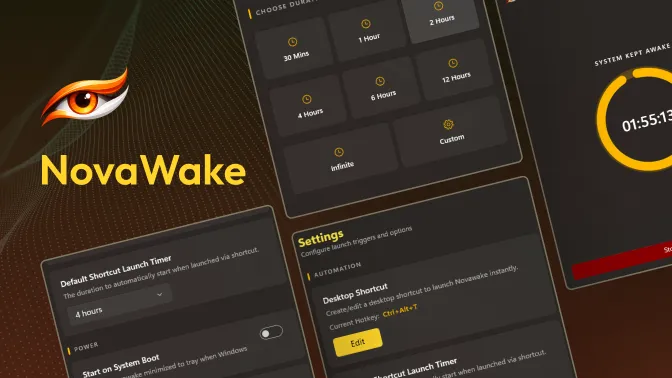
- One-click presets: Quick buttons for 30 minutes, 1, 2, 4, 6, or 12 hours.
- Custom timers and infinite mode: Punch in any duration up to 99 hours for monster renders, or flip on Infinite mode when you want it running until you manually stop it.
- Quick-start global shortcuts: Hit a hotkey from anywhere to start or restore your session without opening the app window.
- Independent display sleep: Keep your CPU, network, and disk going full speed while letting your monitor go dark so you can sleep in a dark room.
- Completion chime: Plays a soft tone when your timer wraps up so you know your session finished.
Quick-Start Global Shortcuts: Why This Matters Most
The biggest problem with sleep tools is friction.
When you realize your PC is about to sleep, you are already busy doing something else. You are watching a build log, reading docs, or waiting on an agent. Stopping what you are doing to open an app or click through system tray menus completely kills your focus.
NovaWake handles this with configurable global shortcuts.
From your code editor, browser, terminal, or a game, just hit your shortcut keys. NovaWake immediately kicks off your default keep-awake timer in the background. No window popups, no clicking around, zero context switching. Tap the shortcut again whenever you want to check how much time is left or cancel the session.
It turns sleep control into a one-second reflex.
Where I Actually Use This
Here is where it earns its keep:
- Vibe coding: Keeping AI coding agents, local LLMs, and dev servers running without interruptions when I step away.
- Massive downloads: Steam games, giant zip files, or Hugging Face model weights that take hours over home Wi-Fi.
- Video exports and 3D renders: Leaving DaVinci Resolve or Blender to chew through a timeline overnight.
- Client calls and presentations: Reading through long briefs or presenting slides without having to poke the trackpad every two minutes.
- Backups: Overnight cloud syncs and external SSD transfers that fail if the connection drops.
Built to Look Native on Windows 11
Most little Windows utilities look like abandonware from 2004. Blocky grey panels, tiny pixelated icons, zero dark mode.
NovaWake is built with WinUI 3. It uses Windows 11’s native Mica material, respects your system theme, and stays out of your way. When you open it, there is a clean countdown display so you can see exactly how many minutes remain before your computer goes back to its normal sleep habits.
Free and Open Source
No ads. No paid subscriptions. No telemetry or background tracking phoning home. It runs 100% locally on your PC.
The entire project is open-source. If you want to check the code, build it yourself, or suggest improvements, everything is available on GitHub.
Download NovaWake
If you are tired of babysitting your PC while you build things, give it a spin.
- Download: Grab the latest installer from NovaWake GitHub Releases.
- Requirements: 64-bit Windows 10 or Windows 11.
- Quick start: Run the setup, choose your preferred global shortcut, and let your computer finish its jobs without sleeping on you.
Quick answers
What does NovaWake actually do?
It tells Windows to hold off on sleep mode or screen-dimming while you have a long download, video render, presentation, or AI coding task running.
How do the keyboard shortcuts work?
You pick a global hotkey in settings. Whenever you need your PC to stay awake, tap that shortcut from inside any app, and NovaWake arms your timer immediately in the background.
Why not just change Windows power settings?
Because you will forget to turn them back on. Three days later your laptop has been cooking inside your bag or your desktop was running all weekend.
Is NovaWake free and open-source?
Yes. 100% free on GitHub under the MIT license. No telemetry, no accounts, and no ads.
Did this land? Tap a reaction.
😼 Billa Alert!
Take back your sleep routine. Schedule phone switch-off with Nightcap on Android.
Read post →